Inhoud
Main window toolbar

Toolbar
| Command | Description | |
|---|---|---|
| image | Add toolbar | Add new toolbar |
| image | Add toolbar item | Add new button or separator to the selected toolbar |
| image | Move up | Move the toolbar, button or separator up one line |
| image | Move down | Move the toolbar, button or separator one line down |
| image | Delete | Remove selected toolbar, button or separator |
General
Inside the Toolbar main window determines your which buttons are available in the toolbar of the main window in the view application.
Group
The full toolbar you see in the view application is divided into smaller toolbars, each of which has a title. This makes it clearer to the end user what the buttons affect, and ensures that the buttons themselves need less accompanying text to make it clear what they affect or do.
This group of buttons is called a “Toolbar” within Database Application Pro. This “Toolbar” then contains one or more buttons, these buttons are called “Toolbar Items”. Each group also has a name, this name is printed in bold at the bottom, in the centre, of the toolbar.
The overall toolbar is completely customisable.

Order
The order of the buttons in the designer is from top to bottom, and that is displayed in the view application from left to right.
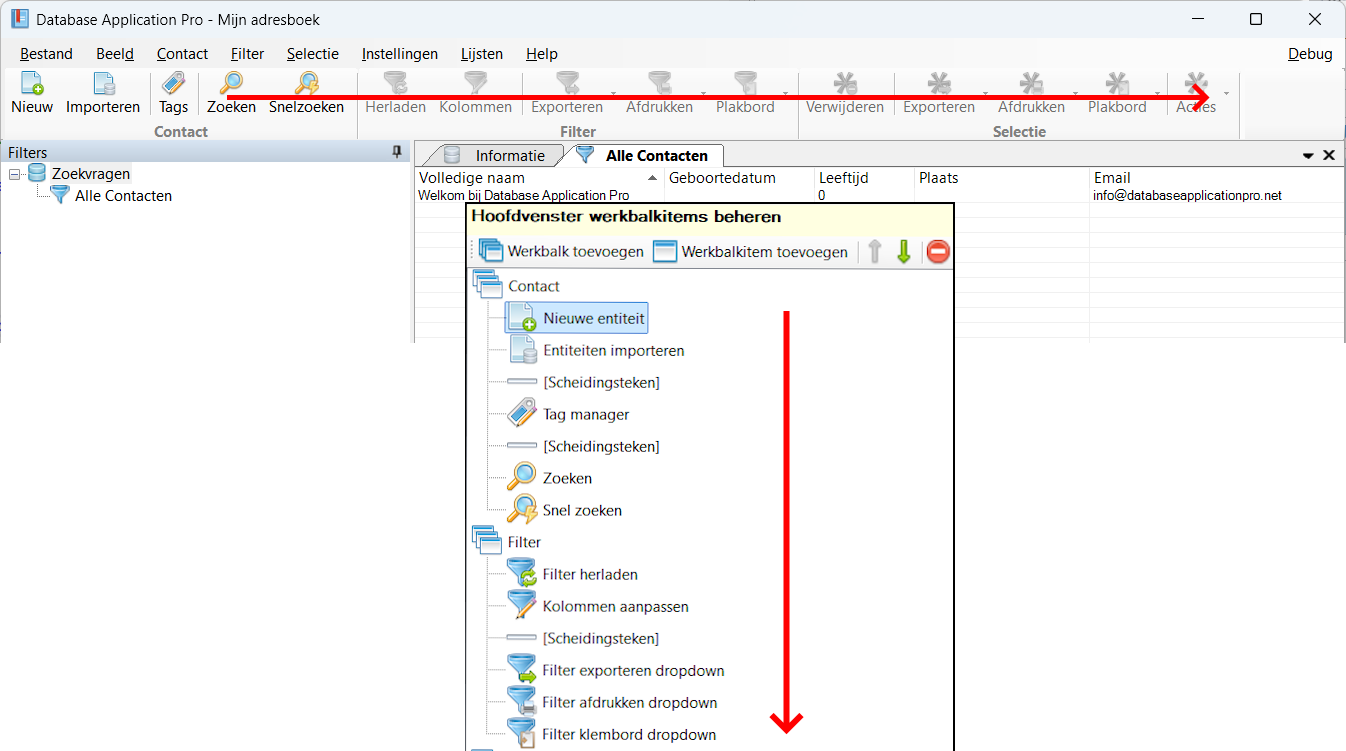
Managing toolbars
Add toolbar
Using the Add toolbar add a new toolbar, the toolbar is added at the bottom

Move toolbar up/down
By selecting a toolbar, you can use the up/down buttons to move the toolbar down or up one position at a time. All buttons associated with the toolbar being moved up/down move with it.
Deleting a toolbar
Click the Delete you remove the toolbar, all buttons associated with the toolbar are also removed. This action is irreversible, but only becomes final when you save your database.
Managing toolbar items
Add toolbar item
Using the Add toolbar item add a new button to your toolbar.
Then choose the button you want to add, the button will be added at the bottom
The example below shows how to add the “Quick Search” button to the toolbar, for example.

Move toolbar item up/down
By selecting a button or separator, you can use the up/down buttons to move the button or separator up or down one position at a time.
Delete toolbar item
Using the Delete you remove the button. This action is irreversible, but only becomes final when you save your database.
Managing toolbar items
Settings
Id
This field displays the internal id of the toolbar item . This field is read-only, the id is determined at the time of adding the toolbar item and cannot be changed. This id does not appear anywhere else in the display application.
Type
This field indicates the type of the toolbar item, you choose the type when adding a new toolbar item. The type cannot be changed after adding it. Based on the type, different properties are available.
Custom name
Every button has a default name. Through this field you can rename the button, this name is displayed in the view application as the button's title. To add a name with multiple lines use the | character to start a new line of text.

Custom tool tip
Every button has a default ToolTip. This is the text to become visible when moving the button with the mouse in the display application. This text can be customised by filling in this field.

Manage direct toolbar item
The following buttons have additional settings, via this Direct buttons you have the ability to start an export/print/action at the touch of a button.

Plug-in
Here you choose which plug-in should be started when the button is pressed. This field has a drop-down menu where you see the available plug-ins on the current computer. When opening the database in the view application, it checks whether the specified plug-in is available on that computer, if the plug-in is not present then the button is hidden.

Preference id
After choosing which plug-in to start, you also have the option of giving it a preference id. The plugin can then immediately do something with this id; the default plug-ins use the preference id to immediately start the export that has that id. If no item with that id exists in the database, a message will be shown informing the plugin that the action is aborted.
Shortcut keys
Window wide
See main window.
Component specific
None.