Inhoud
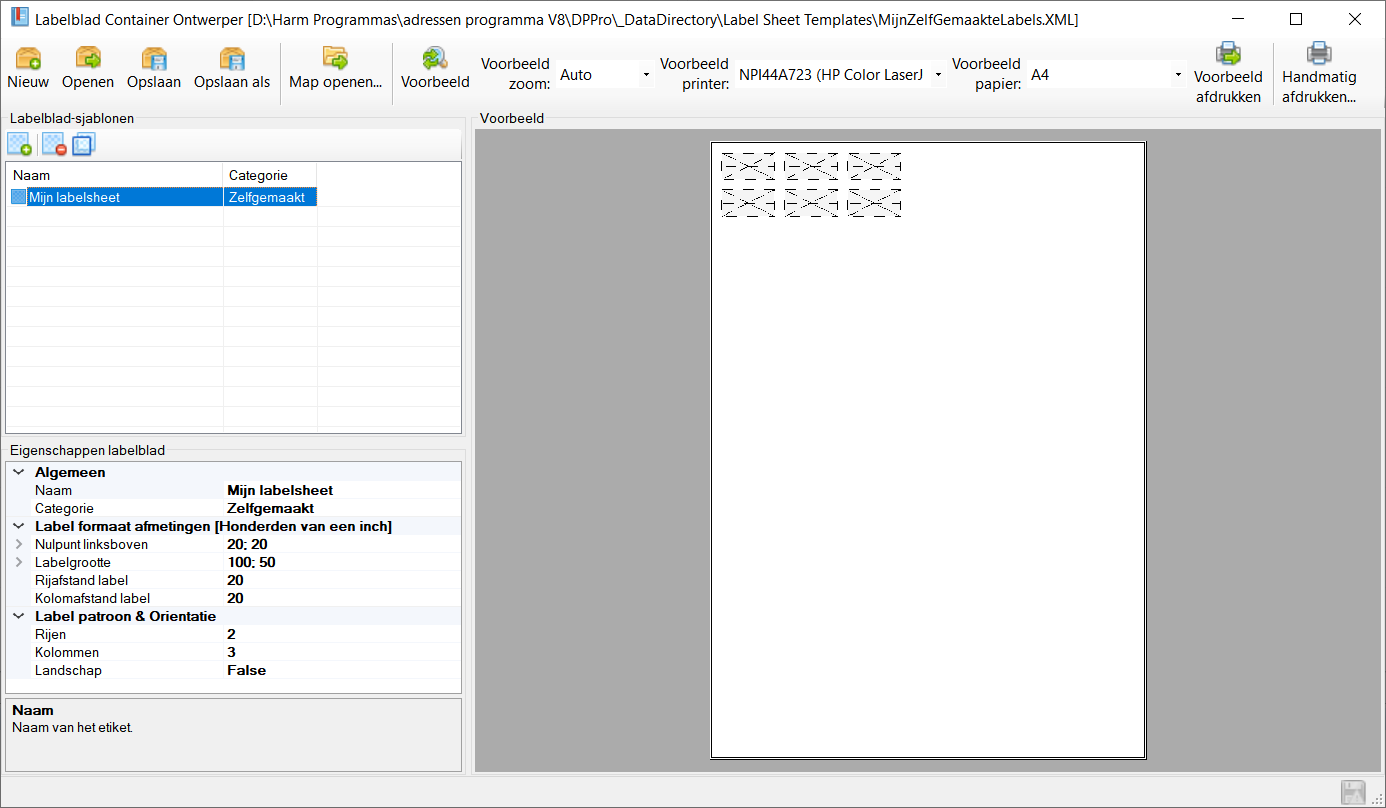
Label sheet container designer
Toolbar
All the buttons from the toolbar are explained below.
| Command | Description | |
|---|---|---|
| image | New | Create a new label sheet container |
| image | Open | Open an existing label sheet container |
| image | Save | Save the current label sheet container |
| image | Save as | Save the current label sheet container, as a new file |
| image | Open folder… | Open the default location where label sheet containers are stored and read out |
| image | Preview | Generate print preview of currently selected label sheet with current settings |
| image | Preview zoom | Determines the zoom level of the print preview |
| image | Printer preview | Determines the printer used for the print preview |
| image | Paper preview | Determines the paper size used for the print preview, this is based on the sample printer |
| image | Print preview | Sends a print job directly to the sample printer with sample paper based on the currently selected label sheet |
| image | Manual print | Start print job with currently selected label sheet, opens standard Windows printer window |
Status bar
The status bar displays the following information.
| Meaning | Description | |
|---|---|---|
 | Unsaved data present | Changes are present that have not yet been saved |
Actions
With the Label sheet container designer window you design your own label sheets, these label sheets are saved on your computer so that you can choose the label sheets in the Label sheet browser. It is also possible to share the file containing the label sheets with others, so that they can also use the label sheets you have designed.
Create new label sheet container
This function closes the current label sheet container and replaces it with a completely new label sheet container.
Open label sheet container
Via this function, you open an existing label sheet container from your computer.
Save sheet container
The current label sheet container is saved.
Save label sheet container as
The current label sheet container is saved, in a new file. The original file is not modified.
Open default save folder
Via the Open folder… the default storage and readout folder of label sheet containers is displayed. This is also the folder read by the programme, only if the label sheet container files are in this specific folder do the labels become available in the Label Sheet browser.
More information about the location of the stadard labelsheet container can be found in the data directory.
Label sheet templates
In the Label sheet templates displays all label sheets within the label sheet container. This list is sorted by the Name of the label sheet.
Button bar
| Command | Description | |
|---|---|---|
| image | New label sheet | Add a new label sheet to the list. |
| image | Delete label sheet | Remove the selected label sheet from the list. |
| image | Duplicate label sheet | Duplicate the selected label sheet, it will be added to the list as a copy. |
Label sheet properties
Hotkeys
Window wide
The following hotkeys are valid across the entire window, they do not depend on the focus on a particular component
| Hotkey | Action |
|---|---|
| F1 | Call up online documentation |
| Alt + F4 | Close window |
| Control + N | Add new label sheet container |
| Control + O | Open existing label sheet container |
| Control + S | Save changes |
| Control + P | Print selected label sheet using sample printer |
| Alt + P | Preview selected label sheet for printing |
Component-specific
No