Table of Contents
Main window
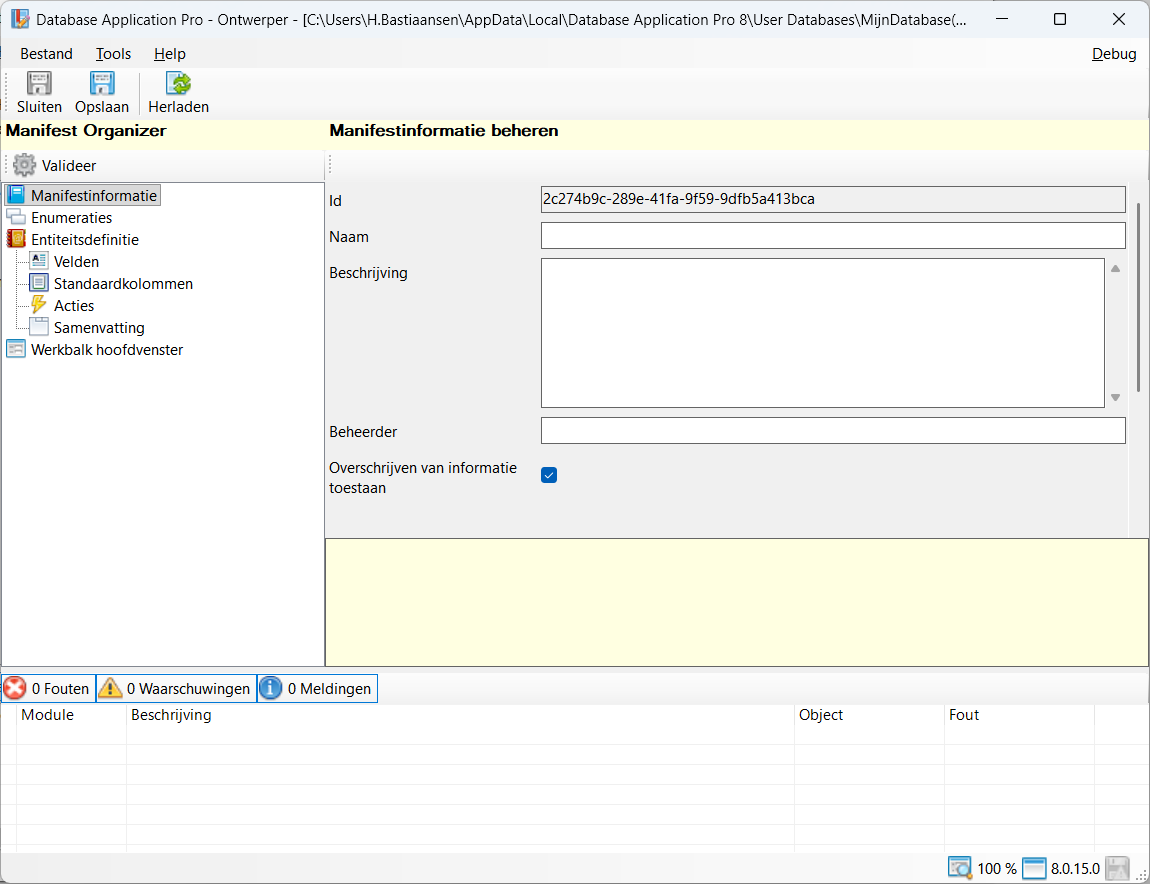
Toolbar
All the buttons from the toolbar are explained below.
| Command | Description | |
|---|---|---|
| image | Save and close | Save changes and close database designer |
| image | Save | Save changes |
| image | Reload | Database reload, unsaved changes are lost |
Status bar
The status bar displays the following information.
| Meaning | Description | |
|---|---|---|
| image | Application version | The current version of Database Application Pro |
| image | Zoom level | The current zoom level of the font |
Actions
Database creation
From the designer application, it is also possible to create a new database by clicking the New database… button. In this window you select a template for your new database, in addition to the predefined templates you can also select the Blank template. This template contains no predefined fields and allows you to build your database from scratch.

Open database
If you want to open an existing database, use the Open database… function. If no database is currently open you will see this option directly in the middle of the main screen, in addition the open database function is always available via the File menu.

Save database changes
Via the Save the changes are saved and the database is updated, first the database structure is validated. If the validation is successful, your database is automatically backed up, then the database is updated. After this, you can open your database as usual in the view application and all your changes will be available.
Via the Close the changes are also saved, if this has been successful the database designer application is automatically closed. If you have opened the database from the view application return directly to the view application.
Reload database
When reloading the database, the database is reloaded, any changes that had not yet been saved are lost.
Overview
The main window consists of three main sections, described separately below.
- Manifest Organizer
- Details
- Validation list
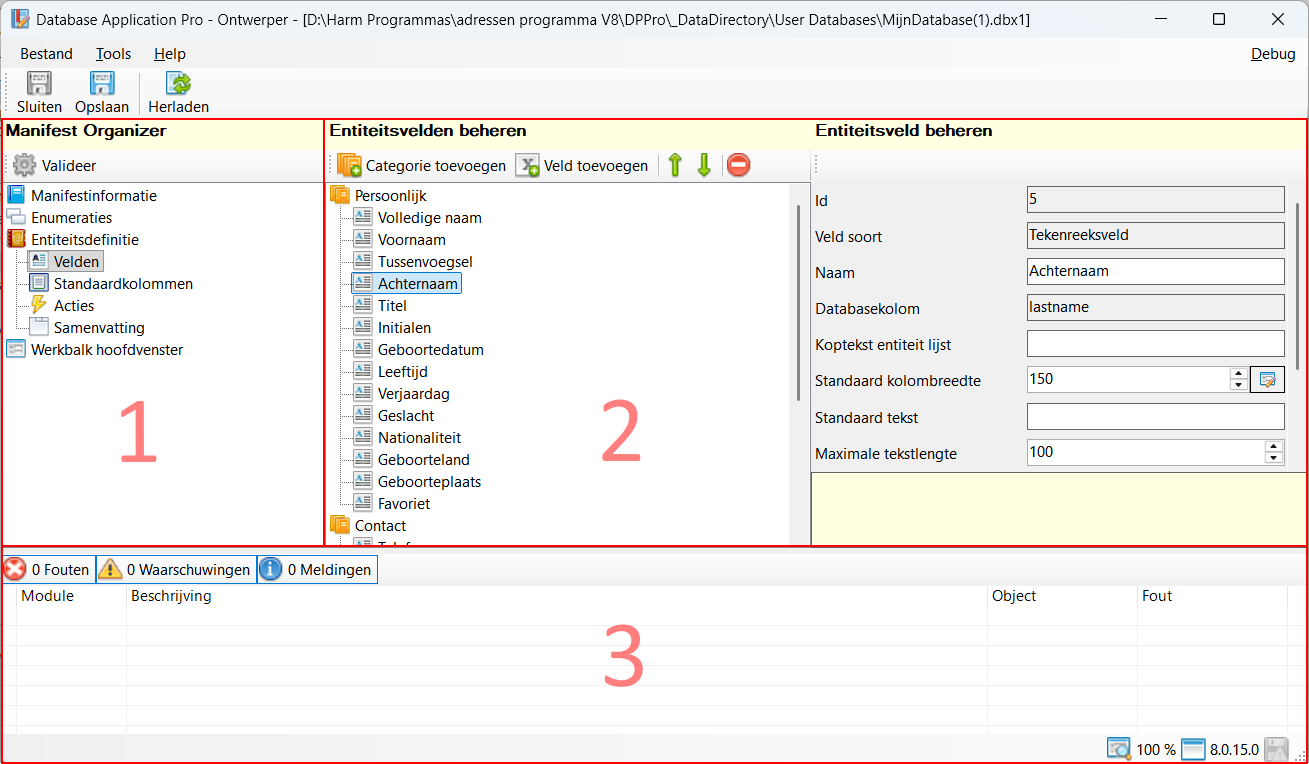
Manifesto organiser
The manifest organiser allows you to navigate between the different components of your database. Listed below are the different components in which the database is built.
Actions
Validate
Via the Validate the database structure is validated, this allows you to check that all changes are valid. If any errors are present, they are displayed in the validation list. Below is an example of a validation failing because a field is not filled in.

Details
The details frame displays the details of the selected item in the manifest navigator.
Validation list
The validation list displays the results of validating and saving the database.
Hotkeys
Window wide
The following shortcuts are valid across the whole window, they do not depend on the focus on a particular component
| Hotkey | Action |
|---|---|
| F1 | Call up online documentation |
| Alt + F4 | Close application |
| Control + N | Create new database |
| Control + S | Save changes |
| Control + Shift + S | Save changes and close database designer |
Component-specific
See individual manifest organiser components for specific keyboard shortcuts in that component.


