Table of Contents
Actions
Toolbar
All the buttons from the toolbar are explained below.
| Command | Description | |
|---|---|---|
| image | Add action | Add new action |
| image | Move up | Move the selected action one line up |
| image | Move down | Move the selected action down one line |
| image | Delete | Delete selected action |
General
An action is a self-defined action on an entity, via the entity's data you can call an external application using the entity's data as parameters.
Based on the order determined here, the actions are displayed in the view application.
Managing actions
Actions
Add action
Via the Add action a new action is added to the bottom of the list.

Delete action
Via the Delete you delete the selected action. This action is irreversible, but only becomes final when you save your database.
Managing actions
Settings
Id
This field represents the internal id of the action. This field is read-only, the id is determined at the time the action is added and cannot be changed. This id does not appear anywhere else in the view application.
Name
This field determines the display name of the action, use this field to give your action a clear name. This value cannot be empty. The action name is used in view application to display and indicate the action.
File name
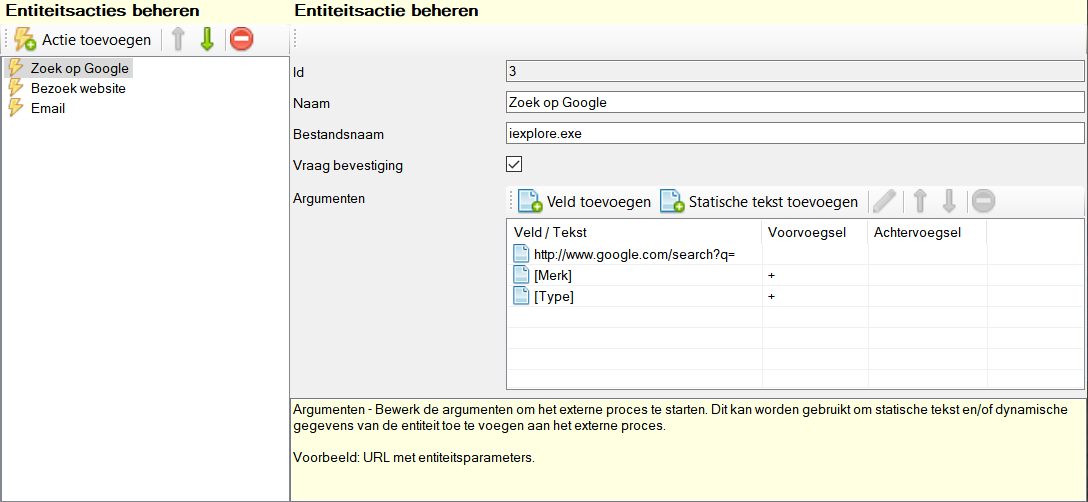
Here you specify the path plus file name of the executable file to be invoked. This field is optional. In addition, the path by itself is also optional if the file to be executed is registered within Windows. For example:
| File name | Description |
|---|---|
iexplore.exe | Launch Internet Explorer. |
winword.exe | Starts Microsoft Word. |
powershell.exe | Starts up the Powershell prompt. |
In the example below iexplore.exe is called with an argument.

If you enter a path, you can call any executable file. Note that this path only works on your own computer, on other computers the executable file may not be present.
Ask for confirmation
Specifies whether, within the display application, confirmation is requested from the end user before the action is executed.
Arguments

Via the arguments list, you determine the arguments to be passed along to the file to be executed. If the file to be executed is not specified, the arguments are simply executed and Windows checks whether an application is available based on the arguments.
For example, in the example below, an executable file is specified, but only an argument. Your default browser will be started.

In the list you build the argument list, there are type elements available to build the argument list.
- Field: This is an existing field of your entity, and will contain the value of the field. So this is a dynamic text.
- Static text: This is a fixed text that will always be added. Dis thus a static text.
A space is always inserted between two items. There is also the possibility to add a field a prefix and suffix. These conjunctions are added when the value of the field is not empty.
Toolbar
All the buttons from the toolbar are explained below.
| Command | Description | |
|---|---|---|
| image | Add field | Add a field to the argument list |
| image | Building static text | Add a static text to the argument list |
| image | Edit | Edit selected item |
| image | Move item up | Move selected item up one line |
| image | Move item down | Move selected item down one line |
| image | Delete | Delete selected item |
Shortcut keys
Wide window
See main window.
Component specific
None.


