Table of Contents
Enumerations

Toolbar
All the buttons from the toolbar are explained below.
| Command | Description | |
|---|---|---|
| image | Add enum | Add new enumeration |
| image | Delete | Delete selected enumeration |
General
An enumeration is a collection of different values, this enumeration can be attached to a field allowing the user to select an item from the fixed collection within the display application. Some examples of an enumeration include a Country list and Gender. An enumeration can be linked to multiple fields and can therefore be used multiple times.
Managing enumerations
Actions
Add enumeration
Via the Add enum opens a menu where you can choose whether to add an empty enumeration that does not yet contain any values, or to add a predefined enumeration.

After choosing a new enumeration, it is added to the list of enumerations. This list is sorted alphabetically.

Delete enumeration
Via the Delete button, you can easily delete an enumeration.
When you do so, all links to this enumeration will be broken. For example, if you have an enumeration field that was linked to the now deleted enumeration, this field will no longer be linked to an enumeration. As a result, this field is no longer valid and validation will fail until this field is linked to another enumeration or removed. So keep in mind that the contents of your database may change when you delete enumerations.
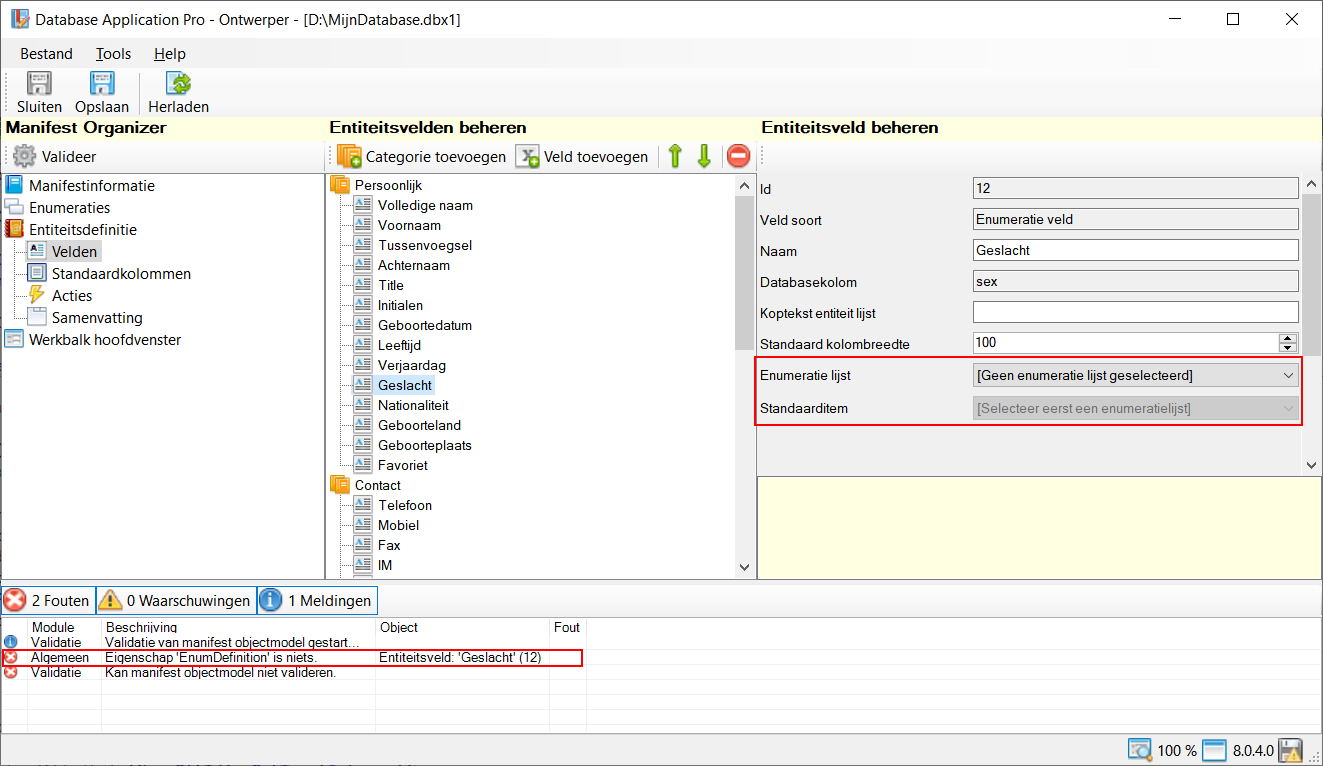
Managing enumerations
Settings
Id
This field represents the internal id of the enumeration. This field is read-only, the id is determined at the time the enumeration is added and cannot be changed. This id does not appear anywhere else in the display application.
Name
This field determines the display name of the enumeration, use this field to give your enumeration a clear name. This value cannot be empty. The name of an enumeration does not appear specifically in the view application. The name also does not have to be unique within the different enumerations.
Database table
This field represents the internal database table name. This field is read-only and is determined at the time of adding the enumeration and cannot be changed. This name does not appear anywhere else in the view application.
Enumeration items
Actions
Toolbar
All the buttons from the toolbar are explained below.
| Command | Description | |
|---|---|---|
| image | Add | Add a new value |
| image | Add bulk | Add multiple values at once |
| image | Edit | Edit selected enumeration value |
| image | Delete | Delete selected enumeration value |
Add enumeration value
Using the Add you can easily add a new value to the enumeration.
The key is the internal id of the value within the enumeration list, this value is read-only. The value may be empty and does not need to be unique within the enumeration.

Add enumeration values in bulk
Using the Add bulk you can easily add multiple values to your enumeration at once. Each line in the text box is added as a new value to the enumeration, you can paste text into this field via the Windows clipboard. In this way, it is possible to easily add dozens of values at once. The key of each new value is determined when accepting the values.

Delete enumeration value
When a value is selected in the list, the Delete button is available. This allows you to delete the value.
If the deleted value was the default value for an enumeration field, this field will no longer be valid until the default value is changed or the field is deleted.
When you save your database it will see if any entities within your database had the deleted value, in which case it will be updated to the new default value for that field. So keep in mind that the contents of your database may change when you modify enumerations.
Shortcuts
Window wide
See main window.
Component specific
Enumerations list
The following shortcuts are valid when the focus is on the enumerations list is.
| Hotkey | Action |
|---|---|
| Delete | Delete selected enumeration. |
Enumeration values list
The following hotkeys are valid when the focus is on the enumeration values list is.
| Hotkey | Action |
|---|---|
| Delete | Delete selected value. |


