Table of Contents
Entity label sheet browser

Toolbar
No
Status bar
No
Actions
The entity label sheet browser window is displayed when calling the label sheet print function, if no saved entity label sheets already exist, the entity label sheet designer opens.
In this window, you can perform the following actions:
Print entity label sheet
Double-clicking on an item in the list of entity label sheets starts the print job. If a printer is preconfigured, the print job is sent directly to that printer, if no printer is preconfigured, the standard Windows printer window will be displayed.
It is also possible that the preconfigured printer can no longer be found on your computer, in which case an error message will be given and the standard Windows print window will still be displayed.
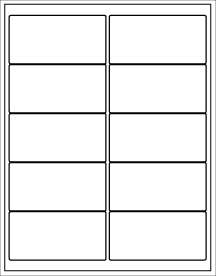
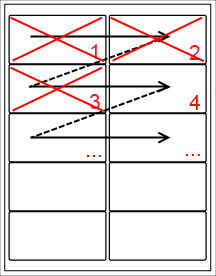
Printing with label offset
This function allows you to specify the position of the first label on the label sheet.

For example, you can start at the 4th position when the first 3 positions are already gone/printed. This allows you to maximise the use of your label paper.
Label offset on 1 | Label offset on 4 |
|---|---|
 |  |
Create entity label sheet
Clicking on the plaatje button opens the entity label sheet designer opens, in it you can design your new entity label sheet.
Edit entity label sheet
First select the entity label sheet you want to edit from the list, then clicking the plaatje button opens the entity label sheet designer opens with the selected entity label sheet.
This button is only available when one label sheet entity is selected from the list.
Delete entity label sheet
First select the entity label sheet you want to delete from the list, then clicking the plaatje button permanently removes the selected entity label sheet from the database. This action is irreversible.
This button is only available when one label sheet entity is selected from the list.
Create/modify label sheet container
Via the plaatje button Label sheet container designer open opens the label sheet container designer opens, from that window you can then create a new label sheet container or edit an existing one.
Shortcut keys
Window wide
The following shortcuts are valid across the entire window, they do not depend on focusing on a particular component
| Hotkey | Action |
|---|---|
| F1 | Call up online documentation |
| Alt + F4 | Close window |
| Control + N | Add new entity label sheet |
Component-specific
The following keyboard shortcuts are only valid when the focus is on the list of available entity label sheets is
| Hotkey | Action |
|---|---|
| Delete | Delete currently selected entity label sheet |
| Enter | Start print job with currently selected entity label sheet |
| Control + Enter | Open selected entity label sheet in designer |


