Table of Contents
Entity label sheet designer

Toolbar
All the buttons from the toolbar are explained below.
| Command | Description | |
|---|---|---|
| image | New | Add new entity label sheet |
| image | Save | Save current entity label sheet |
| image | Delete | Delete current entity label sheet |
| image | Reload | Reload current entity label sheet |
| image | Preview | Generate print preview of labels with current settings |
| image | Preview zoom | Determines the zoom level of the print preview |
| image | Printer preview | Determines the printer used for the print preview |
| image | Paper preview | Determines the paper size used for the print preview, this is based on the sample printer |
| image | Print preview | Sends a print job directly to the sample printer with sample paper based on the current settings |
| image | Manual printing | Start print job with current settings, opens default Windows printer window |
Status bar
The status bar displays the following information.
| Meaning | Description | |
|---|---|---|
 | Unsaved data present | Changes are present that have not yet been saved |
Actions
Within the entity label sheet designer, create the design for your labels to be printed.
New entity label sheet
By clicking the New button in the toolbar will insert a new entity label sheet, all unsaved changes to the current entity label sheet will be lost.
Save entity label sheet
Using the Save button, the entity label sheet is saved in your database. When you open your database on another computer, all your entity label sheets are still available, including the corresponding label sheet.
Delete entity label sheet
If the current entity label sheet is stored in your database, the button Delete available. You can delete the current entity label sheet by clicking the Delete button, this action in irreversible.
Entity label sheet properties
In the box Properties box, you determine the properties of your entity label sheet.
Name
Specify the name of your entity label sheet here, this name is used to display your entity label sheet when you save it.
This text will not appear on the labels to be printed.
Description
The description is displayed in the entity label sheet browser to add a description to your saved entity label sheet.
This text does not appear on the labels to be printed.
Label sheet
Here you specify the format of your label sheet, you can arrive at your desired label sheet in two ways.
- Choose via the label sheet browser

- Design your own or customise chosen template via the label sheet designer
Through this method you customise the chosen label sheet for this entity label sheet, the source template of the label sheet remains unchanged.

If no valid label sheet is selected an exclamation mark will be displayed in front of the field, you can find the exact error message in the validation list.
Font
The font to use when printing labels.
If no font is selected an exclamation mark will be displayed in front of the field, in the validation list you can find the exact error message. If you open your database on another computer, the fonts used must be present on that computer.
Copies per label
Specifies how many copies you want to make of each label, the labels are copied one after the other. If you print label A,B,C with a number of copies of two, then ultimately A,A,B,B,C,C will be printed on paper.
Pre-configuring the printer
This function allows you to fix the current sample printer as the preferred printer for this entity label sheet. Ticking this option will copy the current sample printer to the fields Printer name and Paper name. If the option is already checked, you can use the button next to the check mark to copy the current sample printer again.
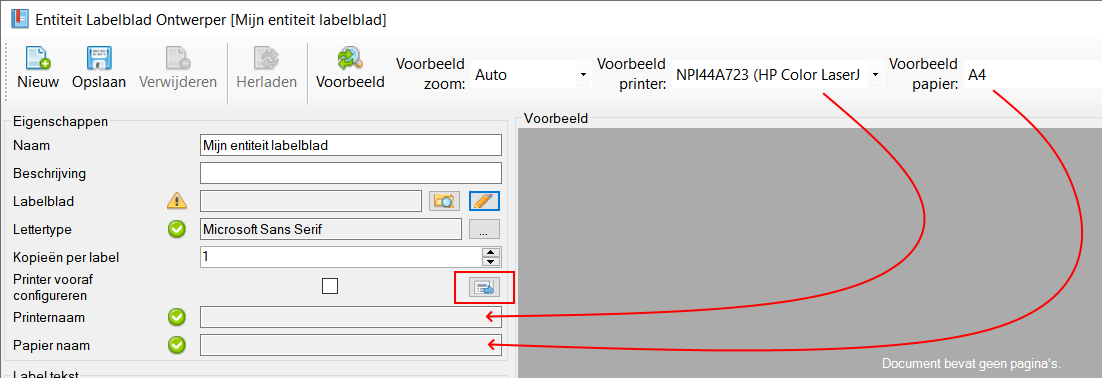
If the preselected printer is no longer present on your computer or the relevant paper is not present in the printer configuration, an exclamation mark will be displayed in front of the field concerned, in the validation list you can find the exact error message. If you open your database on another computer, the printer may not exactly match the current preconfigured printer.
Printing with label offset
This function allows you to specify the position of the first label on the label sheet.
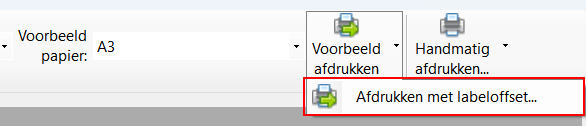
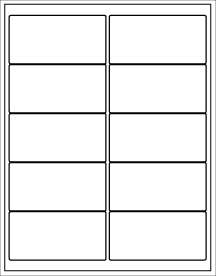
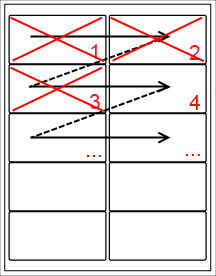
For example, you can start at the 4th position when the first 3 positions are already gone/printed. This allows you to maximise the use of your label paper.
Label offset on 1 | Label offset on 4 |
|---|---|
 |  |
Entity label sheet label text
inside the box Label text defines the text to be printed on the labels. This can be a combination of static text and variables substituted for the value of the entity field.
Insert variable
First you need to select the desired field, then clicking the button next to the field selection will insert the selected field as a variable at the position where the text cursor is in the text box.
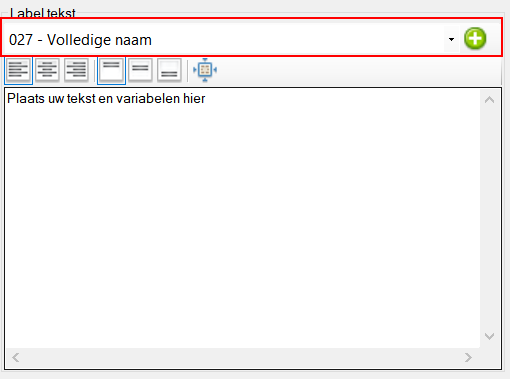
The field is displayed as %Fx%%, where x is the ID of the corresponding field.
Horizontal alignment
The horizontal alignment buttons allow you to align text on the label to be printed.

Vertical alignment
The vertical alignment buttons allow you to align text on the label to be printed.

Align text
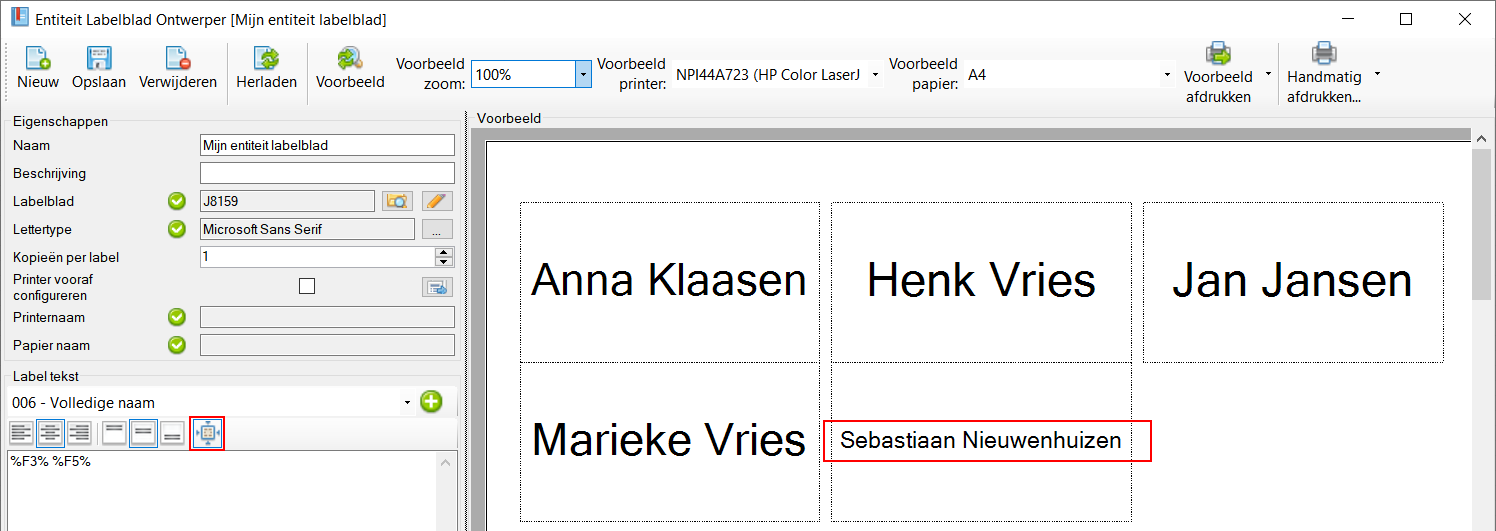
Normally text is displayed at the specified font size, if the text is longer than the label it is displayed on the next line. This can cause text to simply not fit on the label and pieces of text to be missing from the printed label. To prevent this, you can enable this option, the text will then be automatically reduced to fit on the text line, the preferred font size is the issued font size as part of the font.
Below is an example where the text Sebastiaan van Nieuwenhuizen is such a long text that it does not fit on the preferred font size in the text line. Therefore, the text has been reduced to fit.
Entity label sheet sorting
In the box Sorting box, you specify the order in which the labels are to be printed.
Shortcut keys
Window wide
The following hotkeys are valid across the entire window, they do not depend on the focus on a particular component
| Hotkey | Action |
|---|---|
| F1 | Call up online documentation |
| Alt + F4 | Close window |
| Control + N | Add new entity label sheet |
| Control + S | Save changes |
| Control + Shift + S | Save changes and close window |
| Control + P | Print entity label sheet using sample printer |
| Alt + P | View entity label sheet print preview |
| Control + Delete | Delete entity label sheet |
| F5 | Reload entity label sheet |
Component specific
No


