Table of Contents
Label sheet designer
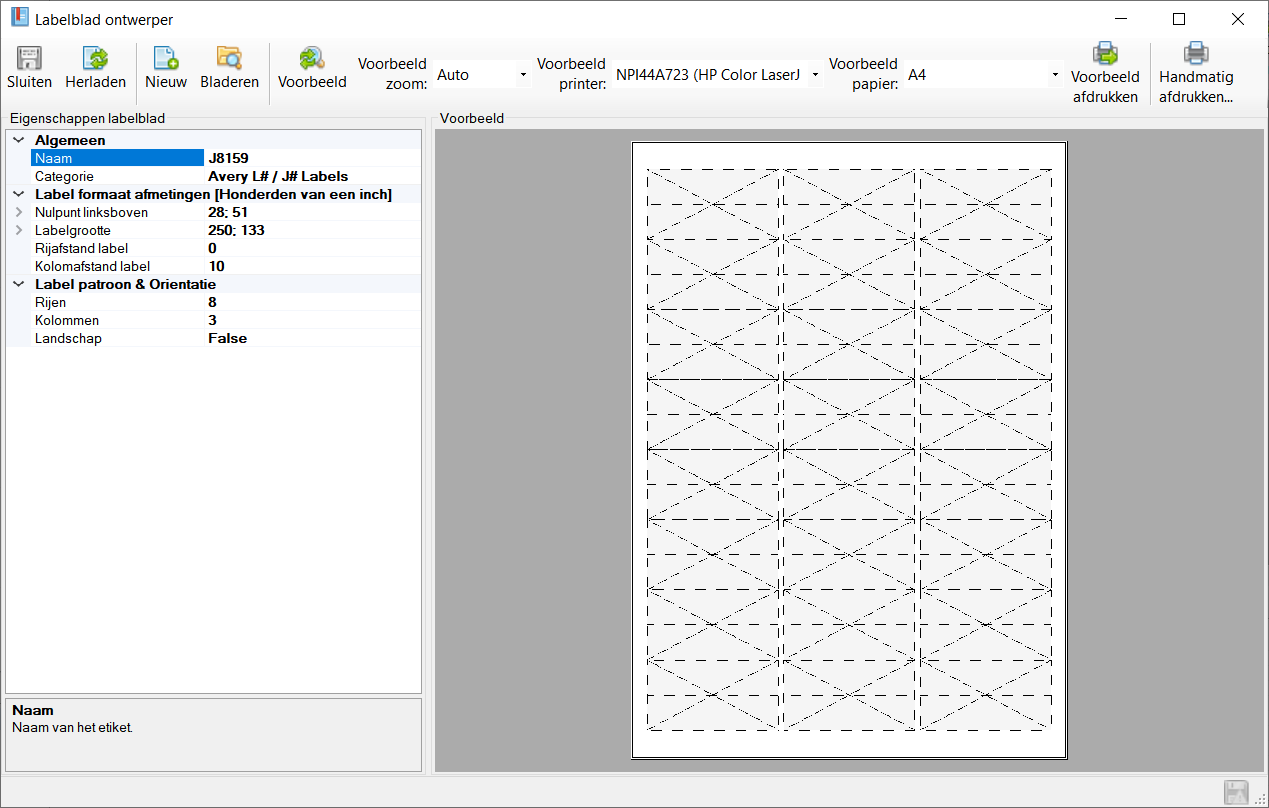
Toolbar
All the buttons from the toolbar are explained below.
| Command | Description | |
|---|---|---|
| image | Close | Save and close current changes |
| image | Reload | Reload the label sheet, all changes will be lost |
| image | New | Reset all settings to new label sheet |
| image | Browse | Replace all settings with existing label sheet template |
| image | Preview | Generate print preview of labels with current settings |
| image | Preview zoom | Determines the zoom level of the print preview |
| image | Printer preview | Determines the printer used for the print preview |
| image | Paper preview | Determines the paper size used for the print preview, this is based on the sample printer |
| image | Print preview | Sends a print job directly to the sample printer with sample paper based on the current settings |
| image | Manual printing | Start print job with current settings, opens default Windows printer window |
Status bar
The status bar displays the following information.
| Meaning | Description | |
|---|---|---|
 | Unsaved data present | Changes are present that have not yet been saved |
Actions
Within the label sheet designer, you design the label sheet on which your data will be printed. Using the entity label sheet designer this window opens when you want to edit the sheet. Within this window, you specifically edit the label sheet belonging to the entity label sheet.
Save and close label sheet
All changes are saved and the window is closed.
Label sheet new
This function resets all values of the label sheet to the default values.
Label sheet browse
Via this function, you can replace the current label sheet with another pre-existing label sheet template.
Label sheet properties
In the Label sheet properties box determines the properties of your label sheet.
Name
Enter the name of how the label sheet is displayed within the application, this text is not reflected on the print result.
Category
Specify here the category in which the label sheet will be placed. Within the label sheet browser, all available label sheets are grouped by category. Because in this case you are editing the specific label sheet belonging to the entity label sheet, the category is not used or displayed anywhere else.
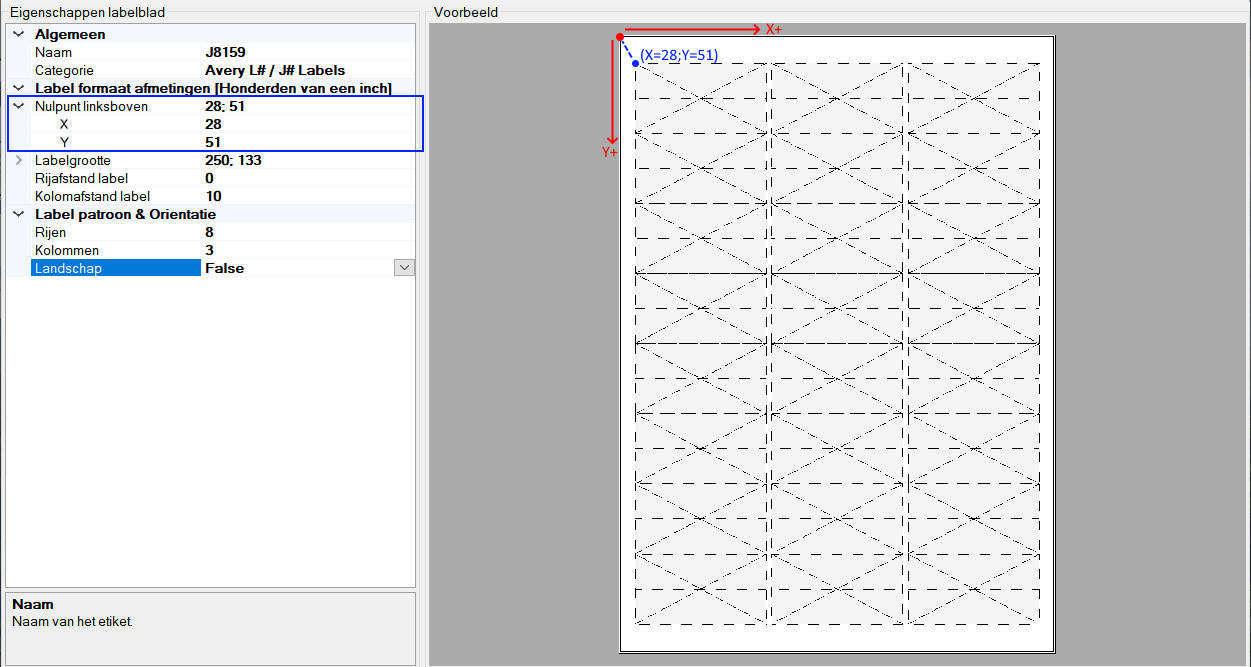
Zero point top left
The unit of this property is 'Hundreds of an inch'.
1 hundredth of an inch is 25.4/100 = 0.254 mm
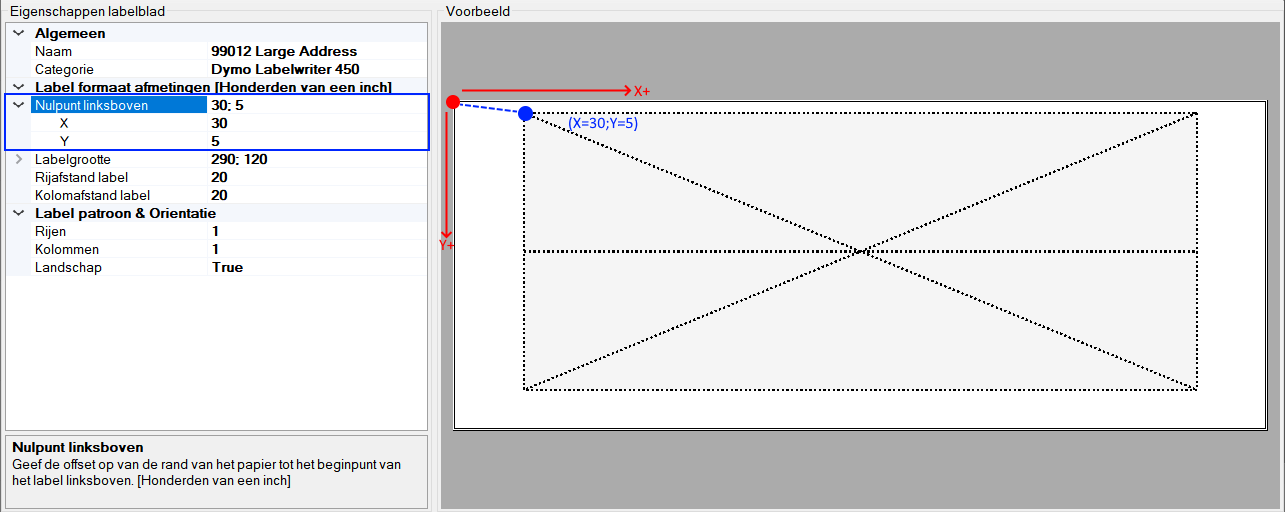
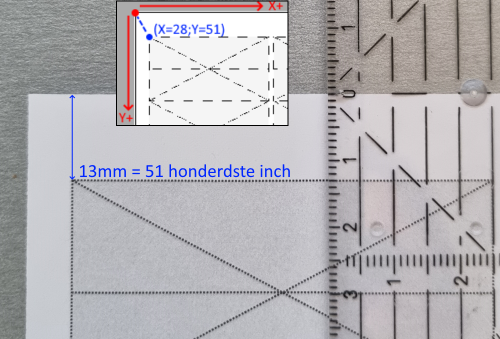
Determines the starting point of the label grid on the label sheet, from which all specified dimensions will be derived. The X/Y direction is always fixed, regardless of whether the label is portrait or landscape (Landscape) is printed. The zero point (X=0;Y=0) is by definition in the top left corner.
Below you can see the zero point (red dot) on a normal A4 label sheet, and the starting point (blue dot) for label grid.
Below is the zero point (red dot) on a DYMO label sheet, and the starting point (blue dot) for label grid.
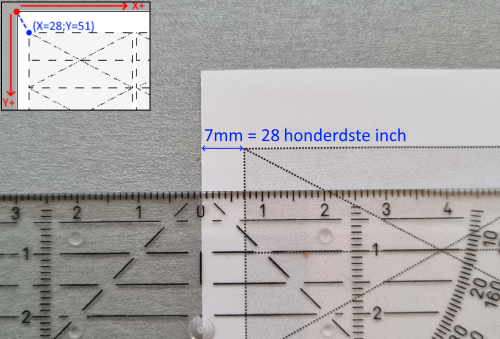
The sizes given are a purely theoretical approximation of how the labels should appear on paper. The printer is ultimately responsible for properly converting the specified sizes to actual paper. It is therefore important to use a quality printer. Below is an example of how the labels actually come out on paper.
| Starting point X | Starting point Y |
|---|---|
 |  |
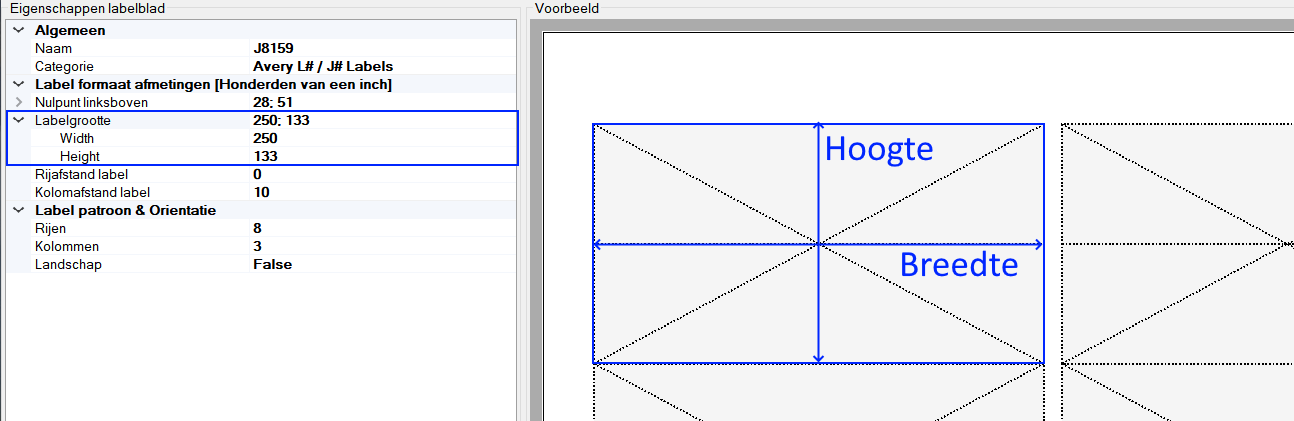
Label size
The unit of this property is 'Hundreds of an inch'.
1 hundredth of an inch is 25.4/100 = 0.254 mm
Defines the width and height of the label. The definition of height and width always remains the same regardless of whether the label is portrait or landscape (Landscape) is printed.
Driving distance label
The unit of this property is 'Hundreds of an inch'.
1 hundredth of an inch is 25.4/100 = 0.254 mm
The row spacing defines the spacing between two rows of labels in the label grid. The definition of row spacing always remains the same regardless of whether the label is portrait or landscape (Landscape) is printed.

Column spacing label
The unit of this property is 'Hundreds of an inch'.
1 hundredth of an inch is 25.4/100 = 0.254 mm
Column spacing defines the spacing between two columns of labels in the label grid. The definition of column spacing always remains the same regardless of whether the label is portrait or landscape (Landscape) is printed.

Rows
The amount of rows of labels you want to print on the label paper.
Columns
The amount of columns of labels you want to print on the label paper.
Landscape
Determines whether your label grid should be printed landscape (True) or portrait (False) on the specified paper size.
Hotkeys
Window wide
The following hotkeys are valid across the entire window, they do not depend on the focus on a particular component
| Hotkey | Action |
|---|---|
| F1 | Call up online documentation |
| Alt + F4 | Close window |
| Control + N | Reset all values to a new label sheet |
| Control + O | Replace all values with an existing label sheet template |
| Control + Shift + S | Save & close changes |
| Control + P | Print worksheet via sample printer |
| Alt + P | Preview worksheet |
| F5 | Reload worksheet |
Component-specific
No


